
FAQ for Parents
GoKid Support Center for Parents
Are you using GoKid through a school invitation, or did you sign up on your own?
Please choose how you joined GoKid to access the right support:
GoKid Connect – School Carpooling
You’ve been invited by your school to use GoKid to connect with nearby families for carpooling. If you received an email invitation from your school, click here to find FAQs and support specific to school-sponsored users.
GoKid App – Independent Carpooling
You signed up directly through the App Store, Google Play, or our website without a school invitation.
Click here to access help articles and videos for GoKid users who are organizing carpools independently.
Watch: How GoKid Connect Works
GoKid Connect Walkthrough
Volunteer to Drive or Assign a Driver
How to Create a carpool with GoKid Connect on the IOS App
Getting your family set up on GoKid or GoKid Connect
How to Create a Carpool on GoKid Connect (web)
How to Update your Address in the GoKid Profile
How to Opt Out of a carpool
FAQs
How does GoKid Connect work?
Setting Up Your Account
What is Gokid Connect for Schools?
GoKid Connect is a school carpooling software that enables school parents to organize carpools within the school community.
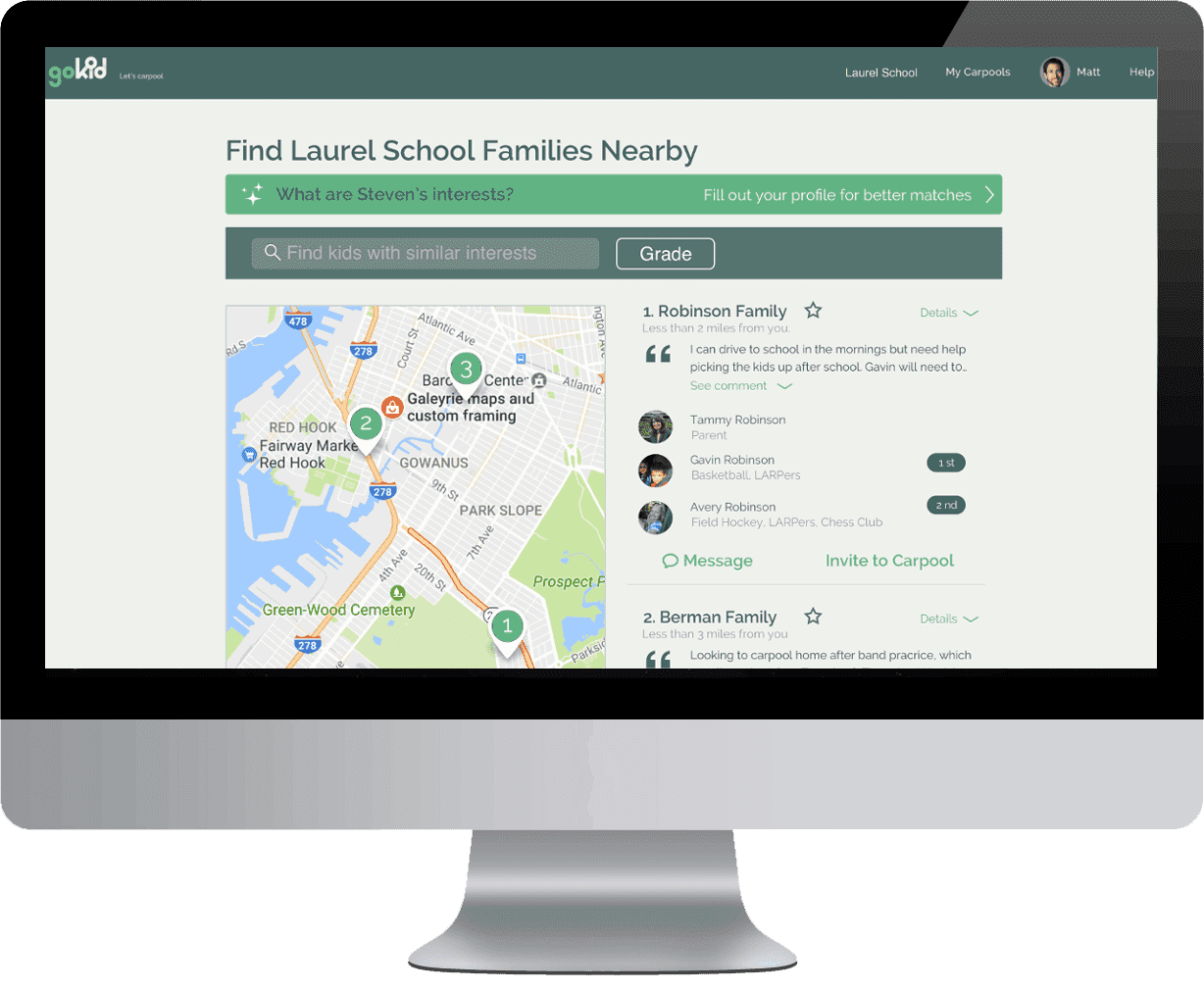
When school administrators launch Gokid via their school admin portal, parents can locate nearby school parents, who have kids in similar grades and are also interested in carpooling. Parents can then organize their carpools depending on their students school activities. The software includes safety features, mapping, messaging, real-time tracking and automated invitations. Watch a video on how it works.
How do I know if my school uses GoKid Connect?
If you are part of a school that has licensed GoKid Connect, you will receive an email invitation to join your school’s carpool program. Watch how what i looks like here.
Interested in bringing carpooling to your schools? Send your principal an email and ask them to contact schools@gokid.mobi.
How do I set up my family account?
- Watch our video on how to set up your family.
- One adult registers for GoKid. If you have been invited by your school we already have one adult and one child in your profile.
- Go to your profile and select “add family member.”
- Add at least one child and, if applicable, another parent.
- The Family Members will get an invitation to join the family on GoKid setting their password.
- Pro Tip: Adding photos adds safety and a friendlier experience 🙂
What’s the difference between an adult and a child account?
Adults in your family have more permissions in GoKid:
- Only adults can join, create, or edit carpools and volunteer to drive.
- For added adults, it’s necessary to provide an email address and phone number to ensure they receive notifications for carpools and driving turns.
Children in your family:
- Cannot volunteer to drive or make changes to the carpools.
- Adding an email or phone number for a child is optional.
- If an email is added for a child, they are invited to the family account, can log in and view the carpool schedule that they are part of.
How do I reset my password?
How can I opt out of the school program?
Connecting with School Families
How do I find other families to carpool with?
After registering your school account with GoKid, it’s time to find some families to carpool with!
- Navigate to the “Find Family” view
- Select families that live nearby (you can also filter by student grade and distance)
- Send these families a message or
- Invite them to carpool!
How do I exchange info on the type of carpool I’m looking for?
How do I start a carpool with parents at my school?
- When your school licenses GoKid Connect, school families can connect and create carpools.
- After your school signs up, you will receive an invitation email from the school, allowing you to find nearby families and identify those with kids in a similar grade to your child. Watch this video for a walkthrough.
Carpool Setup
How do I schedule a carpool?
- Watch this video
- On the mobile app, go to the “Find family” screen.
- Select one or more families on the map.
- Tap “CREATE CARPOOL.”
- Select your child/children participating in this carpool.
- Name the carpool, then select the pick-up and drop-off date, time, and location.
- Send an invitation email with a customizable text – the app will send the invitation to the parents that you selected via email or text message.
- Volunteer to drive on the days that work for you.
What types of carpools can I set up?
GoKid offers 3 carpool types:
- Multiple pick-ups to a single drop-off.
- One pick-up to multiple drop-offs.
- Single pick-up to a single drop-off.
The “Be at” time is auto-set for types 1 and 2, reflecting the time-sensitive location. For type 1, if driving kids from various locations to school by 9 am, set “Be at [school] by 9:00”. The app calculates the start time based on the kids’ locations. For type 2, if picking kids up from school at 3 pm to their homes, set “Be at [school] at 3pm”, as you can’t drop kids off at multiple places simultaneously. For type 3, with a group pick-up and drop-off, you can toggle the “be at” location during setup to reflect which is time-sensitive.
How do I create a carpool with a group pick-up a drop-off?
How do I set up a repeating carpool?
The default carpool setting is non-repeating.
- To schedule a repeat carpool on our mobile apps, go to WHEN and tap “does not repeat” to change the default.
- Select “repeats” in the “date/time” section on the web app.
- Choose the repeating type (e.g., Every weekday) and select the weekday of your carpool, then pick an end date, and save.
- Please note you can’t later add repeating days if you have set up a carpool as a non-repeating carpool; create a new one instead.
Driving & Responsibilities
How do I accept or decline a carpool invitation?
- When you receive a carpool invitation from a fellow school parent, you will usually receive an email with a link prompting you to register with GoKid or to Login
- Accept or decline the request.
- When accepting, review the invitation details and add your child, and fill in your child’s pick-up or drop-off location. As a new user, register with the same email or phone number you were invited with.
- Volunteer to drive on days that work for you by tapping the “Select Driver” tab in the schedule view.
How do I volunteer to drive or assign a family member to drive?
- Tap “SELECT DRIVER” in the schedule view or on the map view.
- Choose the driving adult if multiple adults are in your profile.
- Don’t forget to set up driving reminders in your profile’s “Notifications Settings.”
- Watch this video to learn more.
What should I do if I can’t drive on a day?
- To unvolunteer, open the schedule view, go to the carpool trip, tap your photo or icon, and select “Remove me as a driver.”
- If you have another adult in your family, you can assign this trip to them.
- Your carpool members will automatically be notified that a new driver is needed.
Can I assign another adult in my family to drive?
Editing Carpools
How do I edit or cancel a scheduled carpool trip?
- Open the GoKid app and select the specific trip.
- Tap on the pencil icon in the schedule view.
- Choose the option to “edit” or “cancel.”
- If editing, make the necessary changes. The updates will show for all carpool members.
How do I change my child’s drop-off or pick-up location?
To change your child’s location in a carpool:
- Go to the schedule screen and find the carpool you want to modify.
- Tap your child’s icon or image.
- Choose to change the location for the specific event or the entire series.
- Enter the new address and press Okay.
- Note: If changing the location for the entire series, the app may take a few moments to update.
How do I make changes to a recurring carpool?
- Edit a Carpool Series: Go to “My Carpools” or “Carpools” (iOS), select the carpool, and tap the pencil icon to make changes.
- Edit a Single Carpool Event: On the schedule screen, locate the event, tap the pencil icon, and choose to edit only that event.
- Canceling: On the schedule screen, tap the pencil icon, select “cancel this carpool,” and choose to cancel the event or the entire series.
- Note: Cancelling a series affects the entire carpool group, so use it carefully. To remove a carpool from your list as a non-creator, opt your child out of the entire series.
How do I remove my child from a carpool?
- Watch this video on how to opt out of a carpool.
- Go to “Schedule”
- Tap your child’s image
- Select “opt out of this carpool only” to opt out of a single trip
- Or choose “Opt out of series” for the entire carpool.
- Please remember this is permanent and cannot be reversed!
Communication & Group Management
How do I communicate with other parents in my carpool group?
- Go to the SCHEDULE VIEW.
- Next to the designated driver, tap on the “speech” symbol.
- Use the in-app messaging feature to send and receive messages.
- Leave a message for your carpool group.
How do I manage my carpool group members?
- Open the GoKid app and select “Carpools” in the menu.
- Tap on the carpool you want to manage and navigate to “participants.”
- The creator of the carpool can add additional participants by tapping the + sign.
- Once the new members have accepted, the carpool will be updated automatically.
- Please note you can NOT remove participants that you have invited.
Tracking
How do I track my child’s carpool ride?
Live tracking of vehicles is one of our premium features and is INCLUDED for school families!
- Open the GoKid app.
- Tap on the scheduled ride to view the details.
- Track the ride progress in real-time using the GPS feature.
- Receive notifications for pick-up and drop-offs.
Privacy & Permissions
What information is shared with other families?
- Only carpool with families that you know and trust.
- Add photos and, if available, phone numbers to your children in the profile settings so that the driving parent can easily identify your child.
- Add photos to your profile so children who carpool with you can easily identify you.
- Encourage other parents to do the same.
- Upgrade to Gokid PRO to see the live tracking of the vehicle and encourage your carpool group to do the same.
- Follow all traffic laws and ensure your vehicle is in good condition.
What happens if I opt out?
- Open the GoKid app.
- Navigate to PROFILE and Upgrade to PRO (monthly $ 4.99 / annually $ 49.99).
- Tap on the scheduled ride to view the details.
- Track the ride progress in real-time using the GPS feature.
- Receive notifications for pick-up and drop-offs.
Do parents get paid for driving in the school program?
Safety Best Practices
How can I ensure the safety of my child when carpooling?
- Add photos to your profile and your children’s profiles.
- Encourage other parents to do the same.
- Use the live tracking of the vehicle and encourage your carpool group to do the same – note you must allow tracking in your phone settings.
- Follow all traffic laws and ensure your vehicle is in good state.
Should I upload photos and phone numbers?
Gokid Connect for Schools
How does the School Carpool program work
GoKid Connect School Carpooling: Your school has partnered with GoKid to help school families who live near each other to connect for carpooling and you have received an invitation email to join the program. View specific FAQs and videos for school users.
GoKid App – Independent Carpooling
You signed up directly through the App Store, Google Play, or our website without a school invitation.
Click here to access help articles and videos for GoKid users who are organizing carpools independently.
Watch: How GoKid App Works
Volunteer to Drive or Assign a Driver
How to Create a carpool with GoKid Connect on the IOS App
Getting your family set up on GoKid or GoKid Connect
Setting Up Your Family
How to Create a Carpool on GoKid
Joining a Carpool
Opting Out of a Carpool
FAQs
FAQs – GoKid App
Setting Up Your Account
What is GoKid?
How does GoKid work for parents?
- Set up: Download the Gokid app, register, and add family members.
- Create a carpool: Name it, set a schedule and locations, and invite friends.
- Send invitations: Friends join, and you get notified.
- Volunteer as the driver: Carpool member days you can drive.
- Enjoy benefits: Shared schedule, reminders, optimized routes, and live tracking.
How to set up your family account?
- Watch our video on how to set up your family.
- One adult registers for GoKid. If you have been invited by your school we already have one adult and one child in your profile.
- Go to your profile and select “add family member.”
- Add at least one child and, if applicable, another parent.
- The Family Members will get an invitation to join the family on GoKid setting their password.
- Pro Tip: Adding photos adds safety and a friendlier experience 🙂
What’s the difference between an adult and a child account?
Adults in your family have more permissions in GoKid:
- Only adults can join, create, or edit carpools and volunteer to drive.
- For added adults, it’s necessary to provide an email address and phone number to ensure they receive notifications for carpools and driving turns.
Children in your family:
- Cannot volunteer to drive or make changes to the carpools.
- Adding an email or phone number for a child is optional.
- If an email is added for a child, they are invited to the family account, can log in and view the carpool schedule that they are part of.
How do I reset my password?
Carpool Setup
How do I schedule a carpool?
- Watch this video
- On the mobile app, go to the “Find family” screen.
- Select one or more families on the map.
- Tap “CREATE CARPOOL.”
- Select your child/children participating in this carpool.
- Name the carpool, then select the pick-up and drop-off date, time, and location.
- Send an invitation email with a customizable text – the app will send the invitation to the parents that you selected via email or text message.
- Volunteer to drive on the days that work for you.
What kinds of carpools can I set up?
GoKid offers 3 carpool types:
- Multiple pick-ups to a single drop-off.
- One pick-up to multiple drop-offs.
- Single pick-up to a single drop-off.
The “Be at” time is auto-set for types 1 and 2, reflecting the time-sensitive location. For type 1, if driving kids from various locations to school by 9 am, set “Be at [school] by 9:00”. The app calculates the start time based on the kids’ locations. For type 2, if picking kids up from school at 3 pm to their homes, set “Be at [school] at 3pm”, as you can’t drop kids off at multiple places simultaneously. For type 3, with a group pick-up and drop-off, you can toggle the “be at” location during setup to reflect which is time-sensitive.
How do I create a carpool with a group pick-up a drop-off?
How do I set up a repeating carpool?
- To schedule a repeat carpool on our mobile apps, go to WHEN and tap “does not repeat” to change the default.
- Select “repeats” in the “date/time” section on the web app.
- Choose the repeating type (e.g., Every weekday) and select the weekday of your carpool, then pick an end date, and save.
- Please note you can’t later add repeating days if you have set up a carpool as a non-repeating carpool; create a new one instead.
Driving & Responsibilities
How do I accept or decline a carpool invitation?
- When you receive a carpool invitation from a fellow school parent, you will usually receive an email with a link prompting you to register with GoKid or to Login
- Accept or decline the request.
- When accepting, review the invitation details and add your child, and fill in your child’s pick-up or drop-off location. As a new user, register with the same email or phone number you were invited with.
- Volunteer to drive on days that work for you by tapping the “Select Driver” tab in the schedule view.
How do I volunteer to drive or assign a family member to drive?
- Tap “SELECT DRIVER” in the schedule view or on the map view.
- Choose the driving adult if multiple adults are in your profile.
- Don’t forget to set up driving reminders in your profile’s “Notifications Settings.”
- Watch this video to learn more.
What should I do if I can’t drive on a day?
- To unvolunteer, open the schedule view, go to the carpool trip, tap your photo or icon, and select “Remove me as a driver.”
- If you have another adult in your family, you can assign this trip to them.
- Your carpool members will automatically be notified that a new driver is needed.
Editing Carpools
How do I edit or cancel a scheduled carpool trip?
- Open the GoKid app and select the specific trip.
- Tap on the pencil icon in the schedule view.
- Choose the option to “edit” or “cancel.”
- If editing, make the necessary changes. The updates will show for all carpool members.
How do I change my child’s drop-off or pick-up location?
To change your child’s location in a carpool:
- Go to the schedule screen and find the carpool you want to modify.
- Tap your child’s icon or image.
- Choose to change the location for the specific event or the entire series.
- Enter the new address and press Okay.
- Note: If changing the location for the entire series, the app may take a few moments to update.
How do I make changes to a recurring carpool?
- Edit a Carpool Series: Go to “My Carpools” or “Carpools” (iOS), select the carpool, and tap the pencil icon to make changes.
- Edit a Single Carpool Event: On the schedule screen, locate the event, tap the pencil icon, and choose to edit only that event.
- Canceling: On the schedule screen, tap the pencil icon, select “cancel this carpool,” and choose to cancel the event or the entire series.
- Note: Cancelling a series affects the entire carpool group, so use it carefully. To remove a carpool from your list as a non-creator, opt your child out of the entire series.
How do I remove my child from a carpool?
- Watch this video on how to opt out of a carpool.
- Go to “Schedule”
- Tap your child’s image
- Select “opt out of this carpool only” to opt out of a single trip
- Or choose “Opt out of series” for the entire carpool.
- Please remember this is permanent and cannot be reversed!
Communication & Group Management
How do I communicate with other parents in my carpool group?
The Gokid app makes carpooling faster and easier; everyone’s schedules are synced, participants are notified when it’s their turn to drive, and you will receive other reminders, for example, if a driver for a specific day is needed. If you’d still like to leave custom messages, follow these steps:
- Go to the SCHEDULE VIEW.
- Next to the designated driver, tap on the “speech” symbol.
- Use the in-app messaging feature to send and receive messages.
- Leave a message for your carpool group.
How do I manage my carpool group members?
- Open the GoKid app and select “Carpools” in the menu.
- Tap on the carpool you want to manage and navigate to “participants.”
- The creator of the carpool can add additional participants by tapping the + sign.
- Once the new members have accepted, the carpool will be updated automatically.
- Please note you can NOT remove participants that you have invited.
Tracking
How do I track my child’s carpool ride?
Live tracking of vehicles is one of our premium features and is INCLUDED for school families!
- Open the GoKid app.
- Tap on the scheduled ride to view the details.
- Track the ride progress in real-time using the GPS feature.
- Receive notifications for pick-up and drop-offs.
Participation & Permissions
Who can create and manage carpools?
Can I assign other parents to drive?
Safety Tips
How can I ensure the safety of my child when carpooling?
- Only carpool with families that you know and trust.
- Add photos and, if available, phone numbers to your children in the profile settings so that the driving parent can easily identify your child.
- Add photos to your profile so children who carpool with you can easily identify you.
- Encourage other parents to do the same.
- Upgrade to Gokid PRO to see the live tracking of the vehicle and encourage your carpool group to do the same.
- Follow all traffic laws and ensure your vehicle is in good condition.
What does GoKid PRO include?
- Live tracking of carpool rides.
- In-app chat with your carpool group.
- Custom notifications (e.g., driving reminders).
- Viewing of past carpools.
- Access for the entire family (not just one user),
Pricing
How much does GoKid cost?
- Free: GoKid is available for free with core functionalities.
- Gokid PRO: Subscription-based upgrades offer security features like live tracking, in-app chat, custom notifications, and seeing the history of your carpool. Gokid PRO covers the entire family!
- Monthly Subscription: $4.99/month.
- Yearly Subscription: $49.99/year.